
Technical FAQ#
What if I lose my internet connection while the model is training?
If I run Piximi multiple times, why do I get different training results?
If Piximi crashes, how can I recover my project?#
Currently, there is no mechanism to auto-save work. It is highly recommended to manually save work periodically as you go.
Click Save in the top bar of the Project Viewer to save the project.
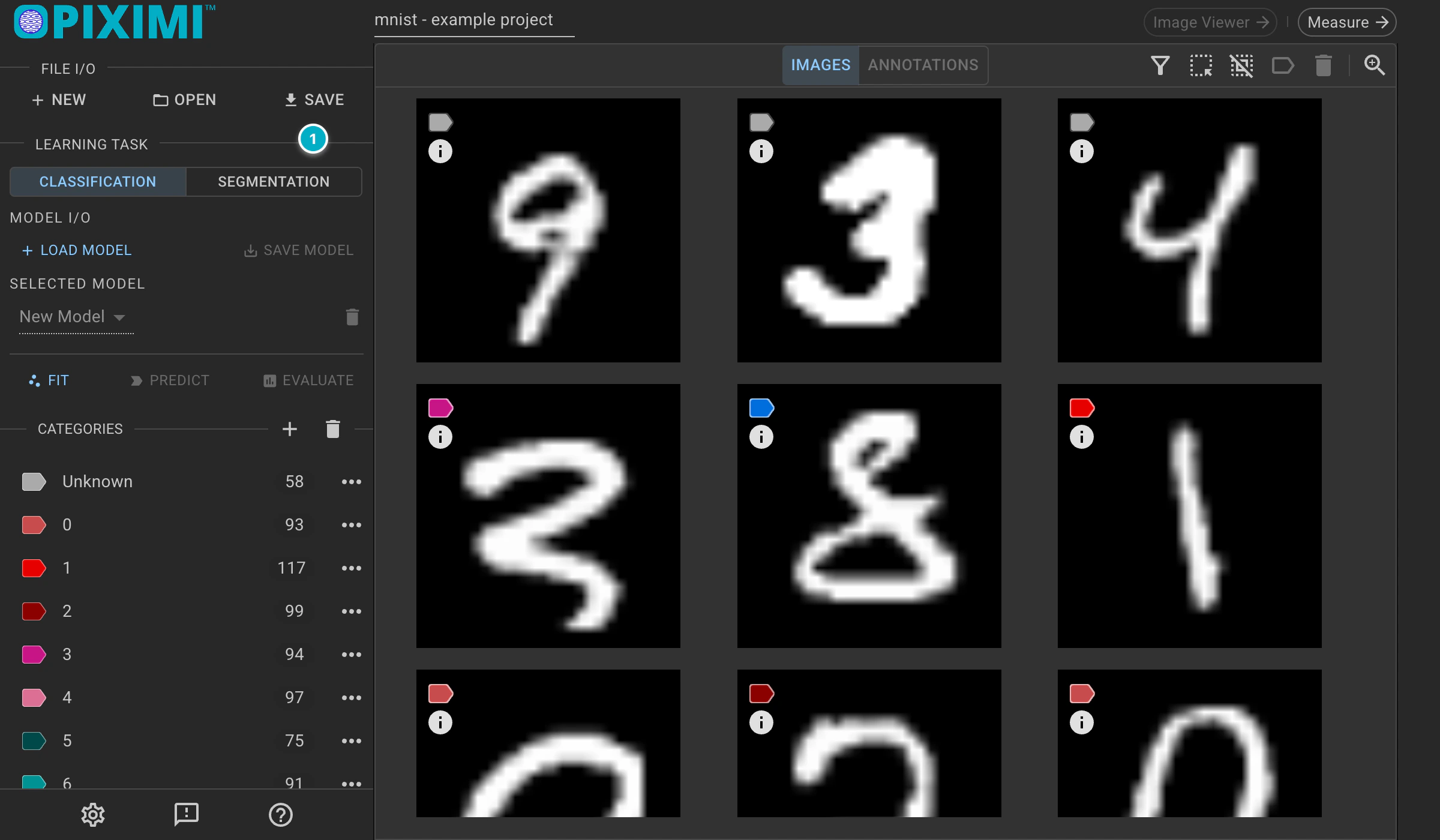
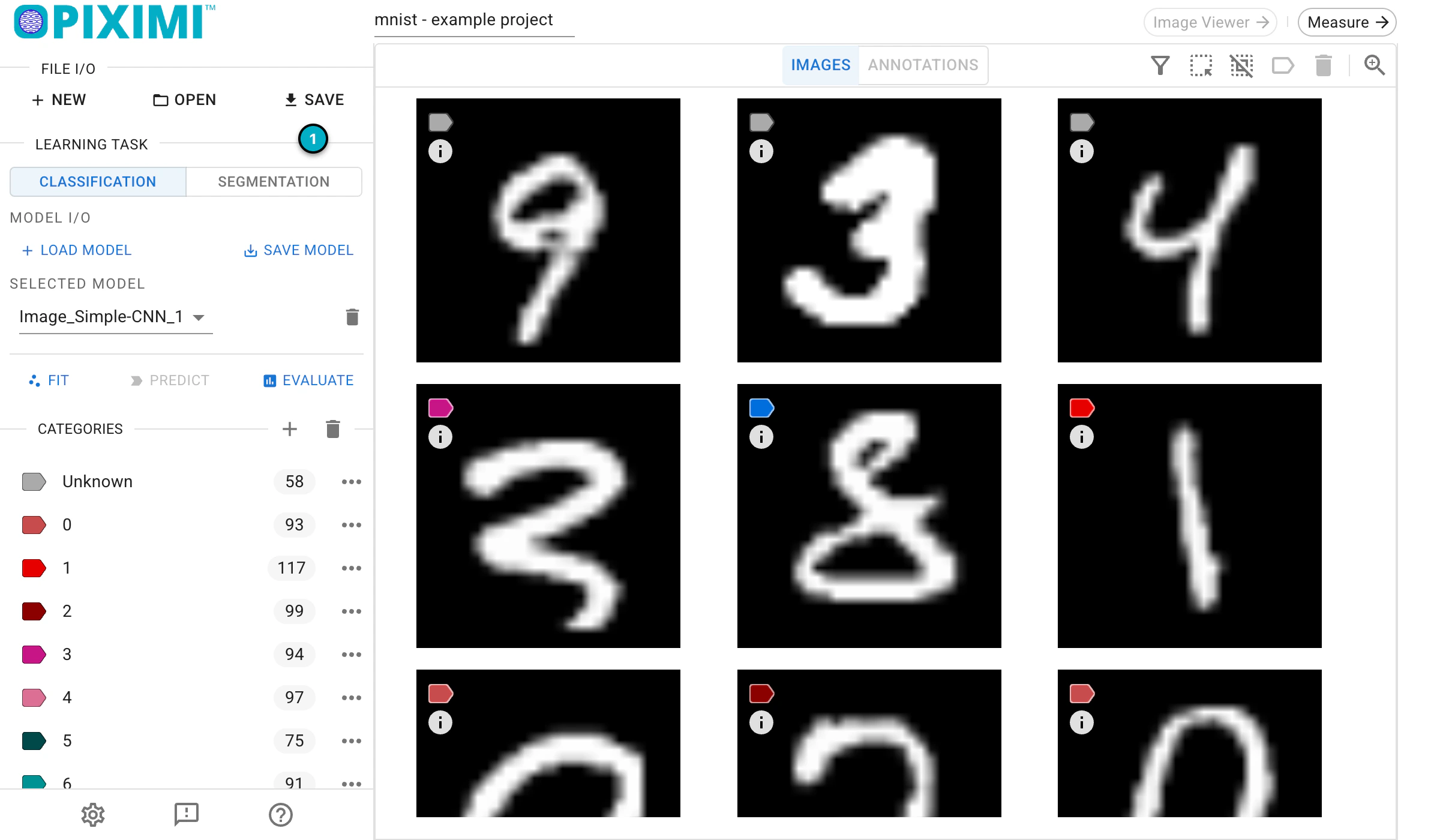
The Save button in the Project Viewer.
Enter a name in the Save Project window and click Save Project. Piximi downloads the project as a .zip file.
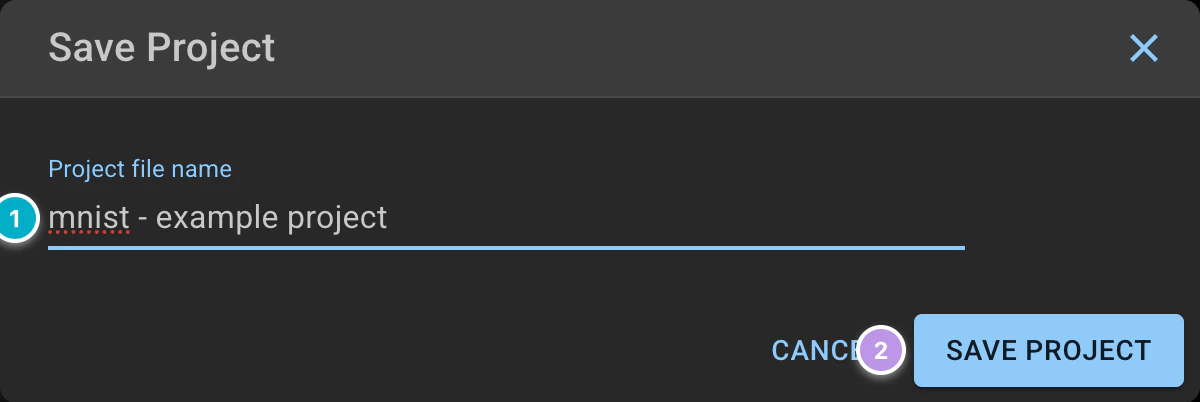
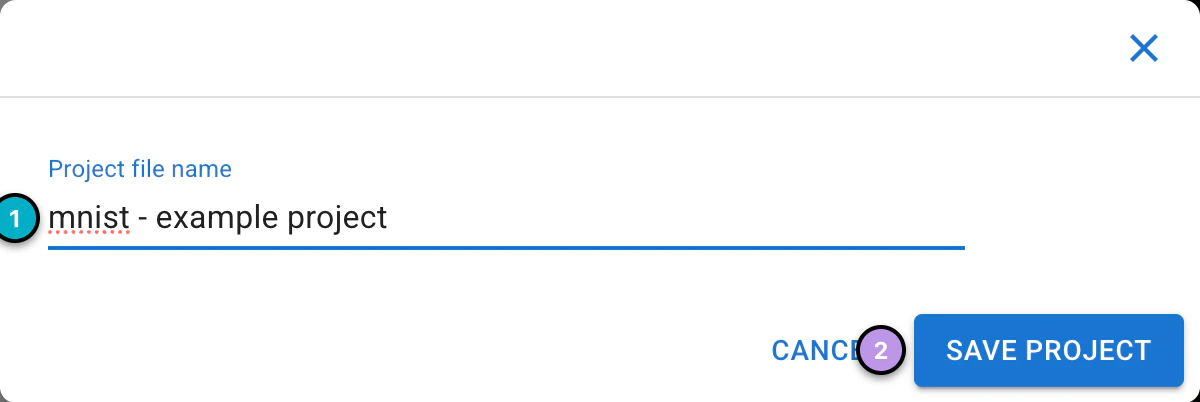
The Save Project window.
The saved project contains the entire state of the project, including all images and annotations made on them, and model settings (preprocessing, architecture, optimization, and dataset settings), but not the trained model weights. Note that the project file is not optimized for human viewing - see our guidance on exporting data to see how to export various types of data in a friendlier format.
To save the trained model weights, select the model under Selected Model in the Classification section of the Learning Task panel and click Save Model under Model I/O.
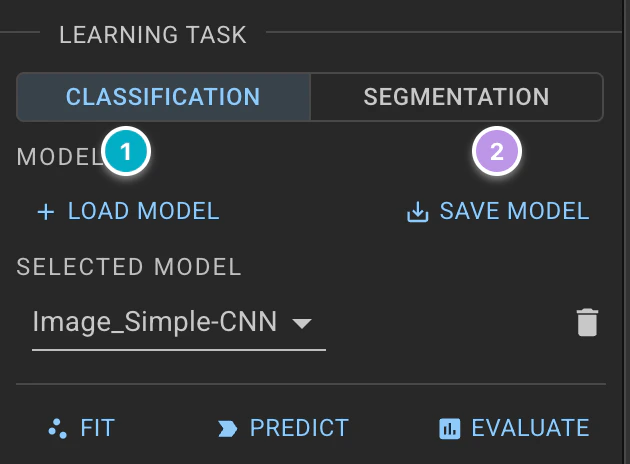
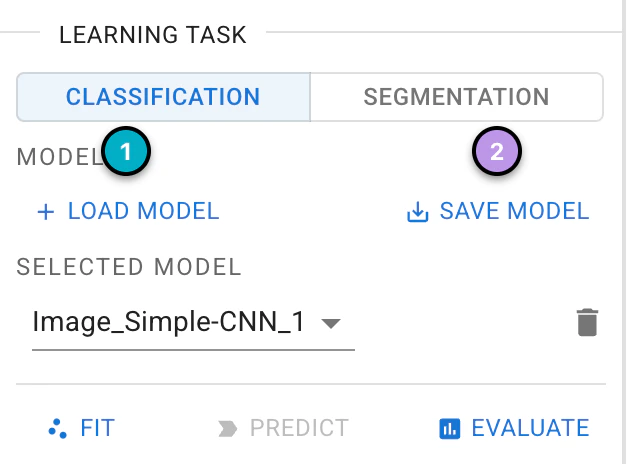
The Load Model and Save Model buttons in the Classification section.
Enter a name in the Save window and click Save. Piximi downloads a .zip file with the model topology (.json), the model weights (.bin), the history of its training runs, and a manifest file that lets Piximi find them again.
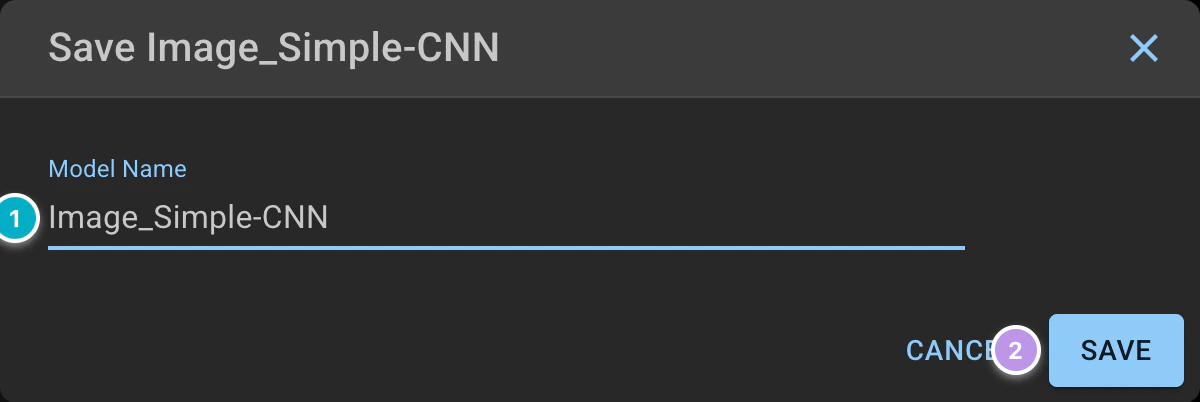
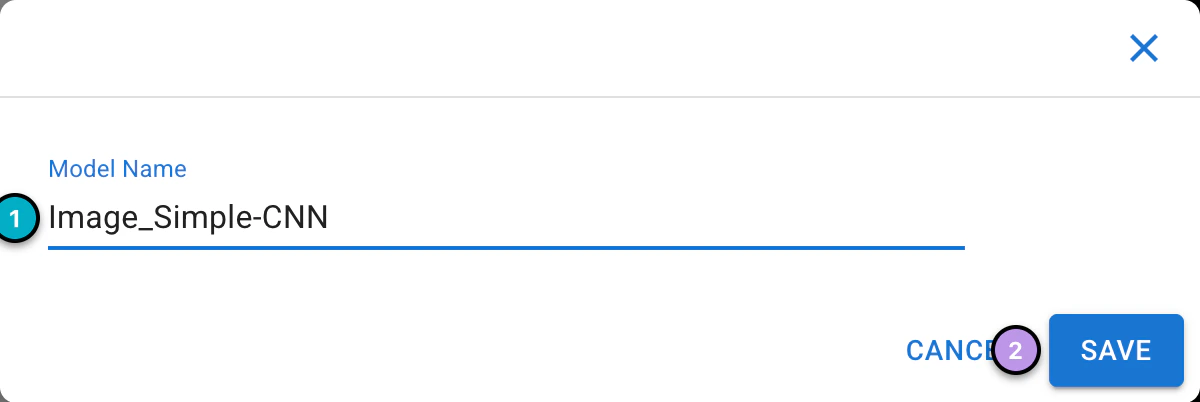
The window for saving a model.
If Piximi crashes, reload your work through Open > Project > Upload .zip (or Upload .zarr) to load the images and project settings. Your computer’s file picker opens, where you choose the project file. If a project is already open, Piximi first asks you to confirm that it should be replaced. The same menu offers Load Example for the example projects.
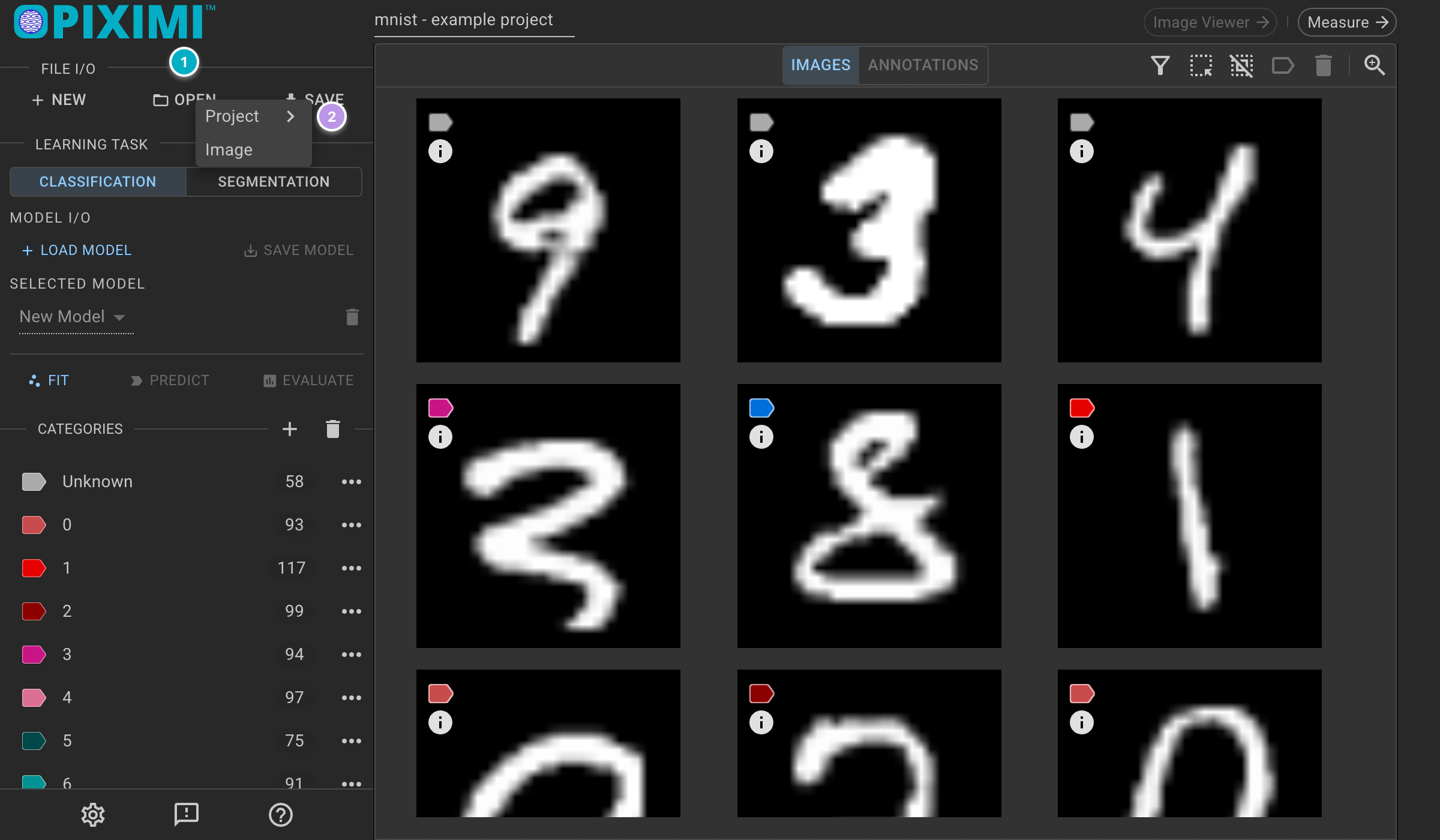
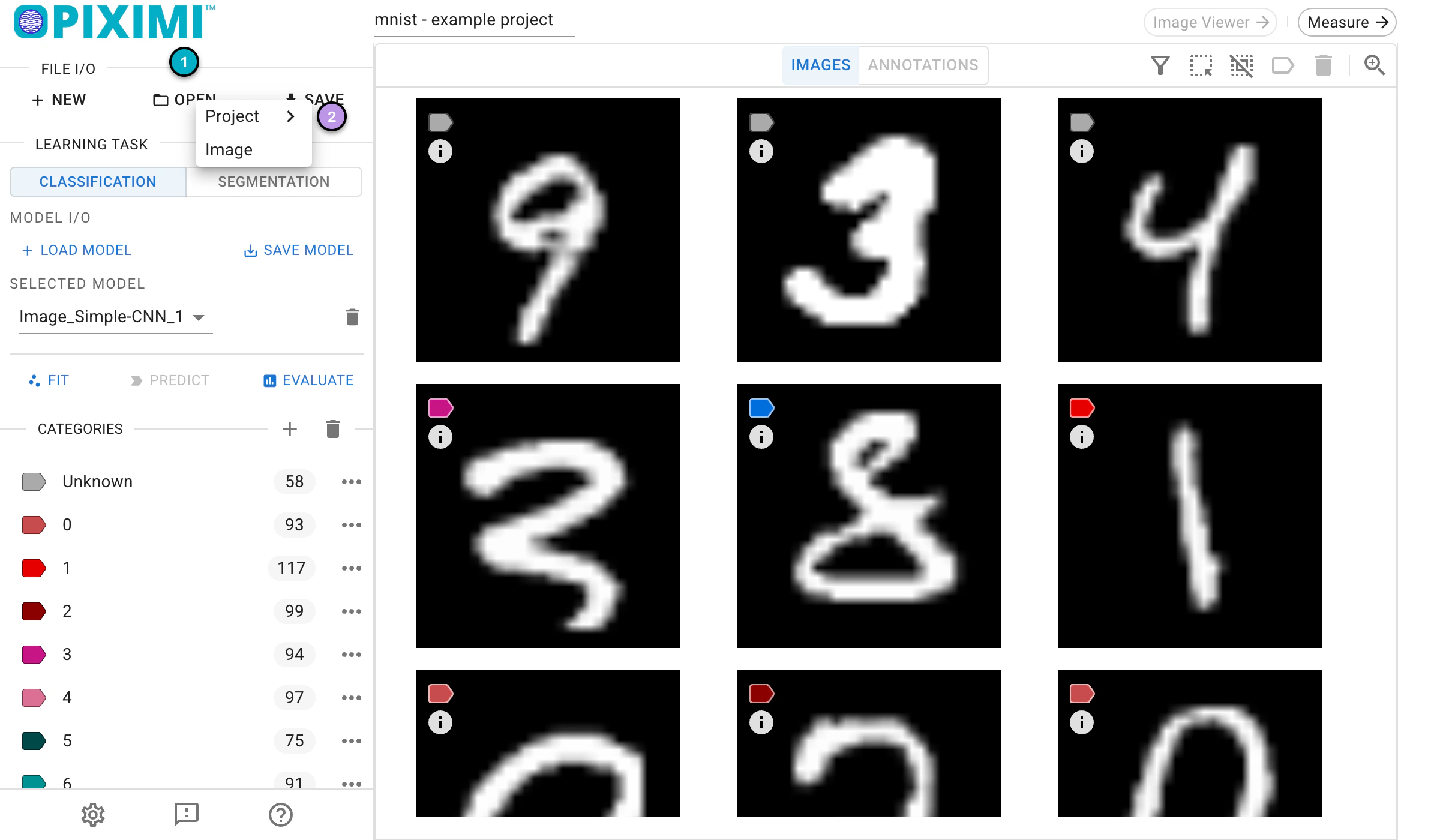
The Open menu.
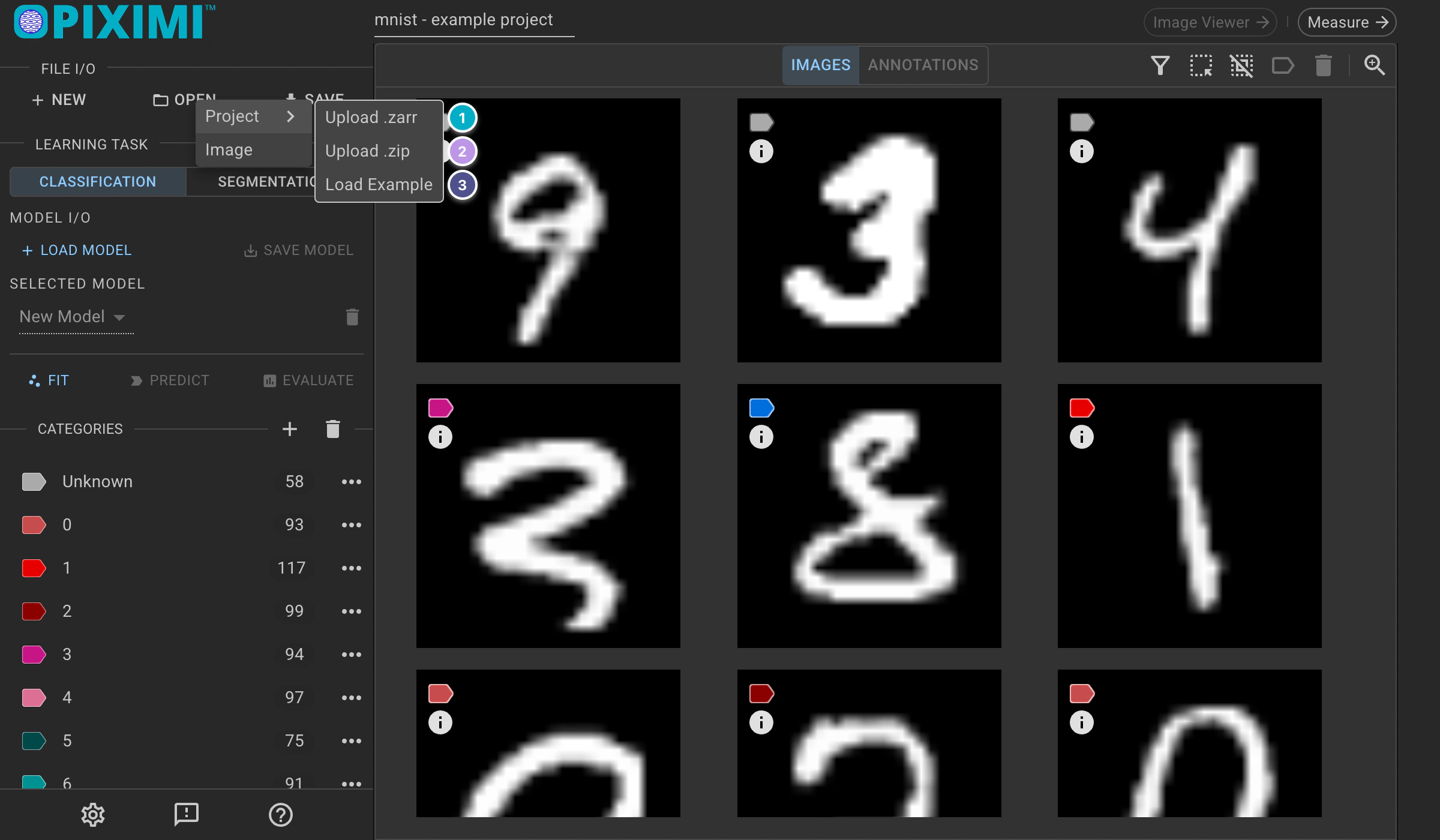
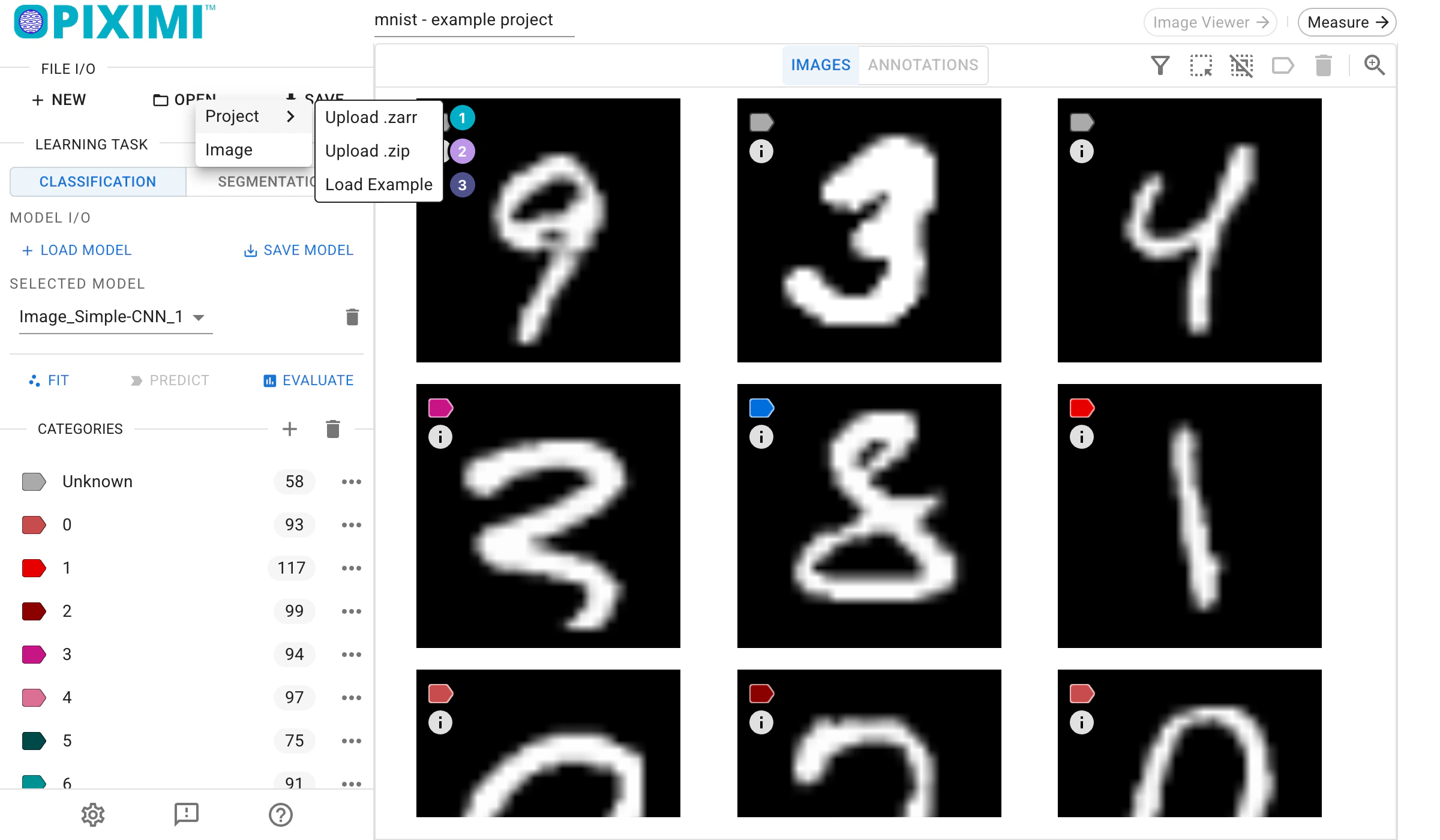
The Project submenu of the Open menu.
Use Load Model in the same Model I/O section to load a trained model and its parameters.
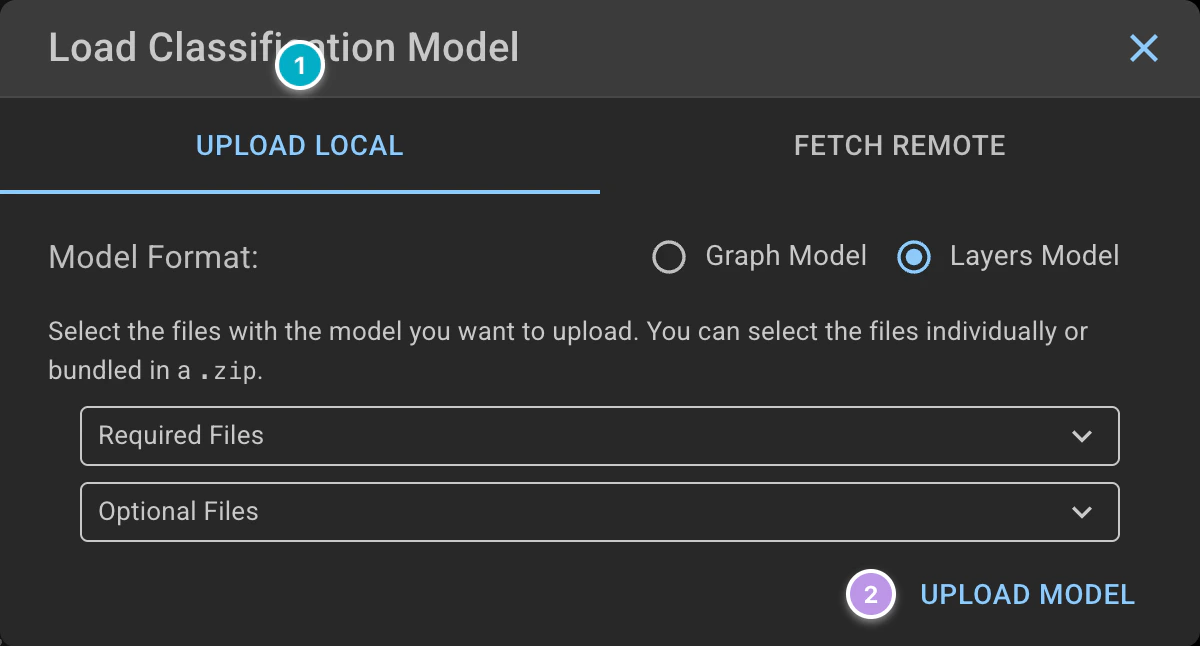
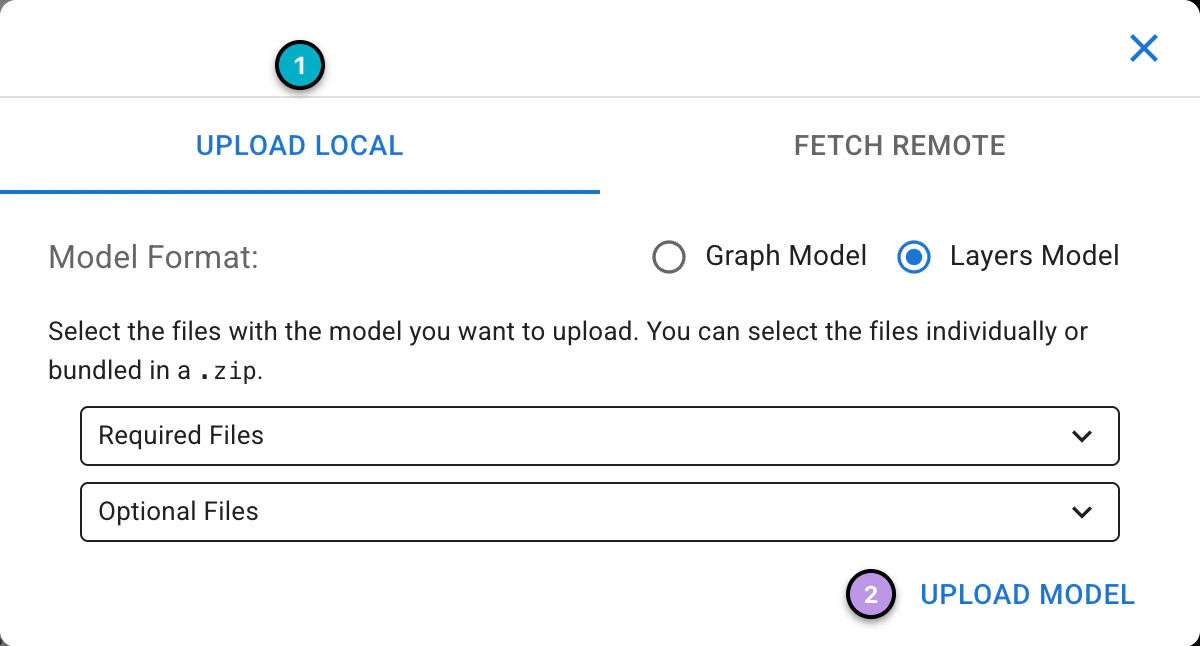
The Load Classification Model window.
In the Upload Local tab, click Upload Model and select either the .zip saved by Piximi, or the individual files. When selecting individual files, make sure to select both the weights (.bin) file and the model topology (.json) file; the manifest and the training runs .json files are optional. Once the model is uploaded, Piximi shows a summary of it and selects it as the active model.
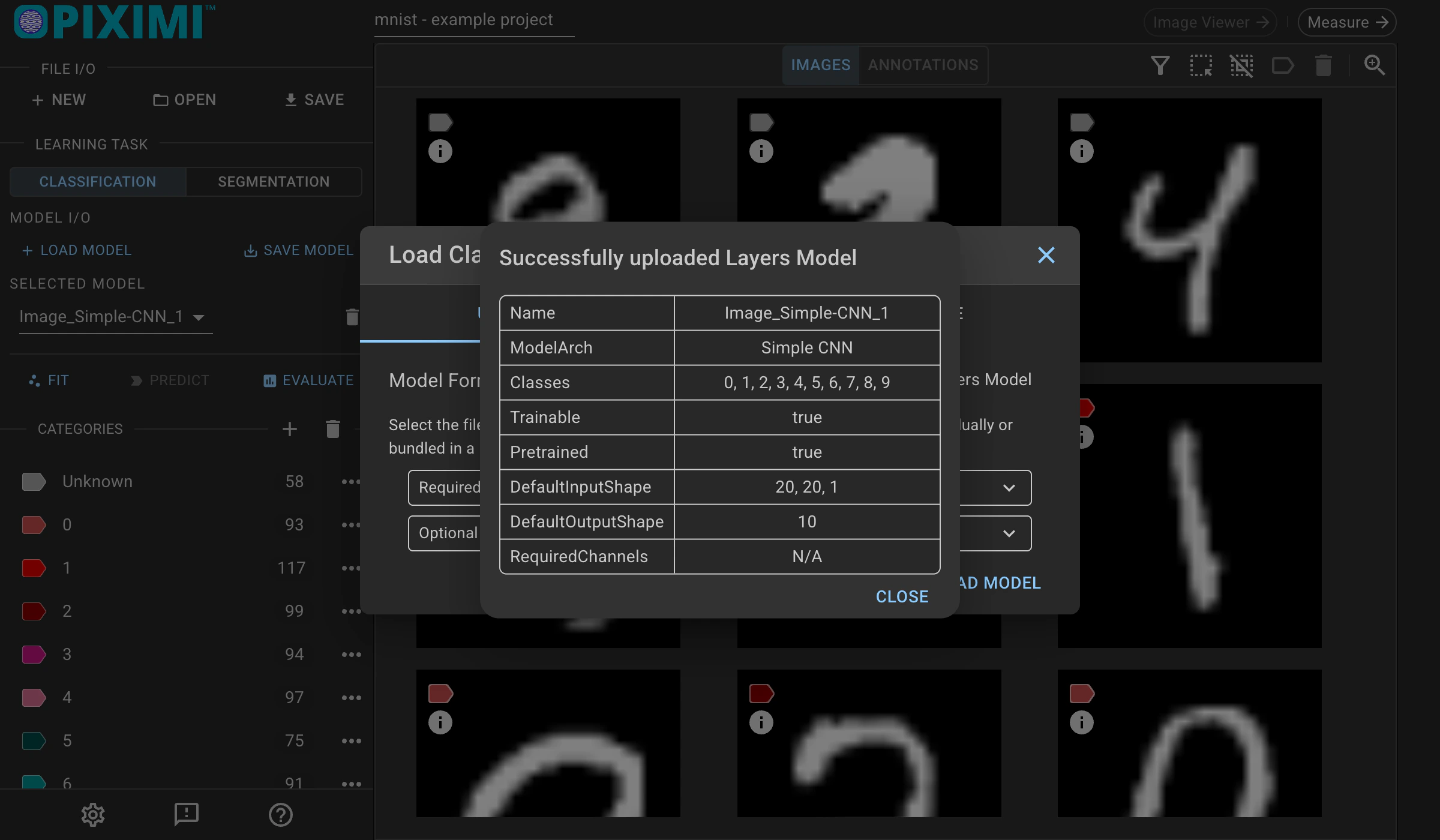
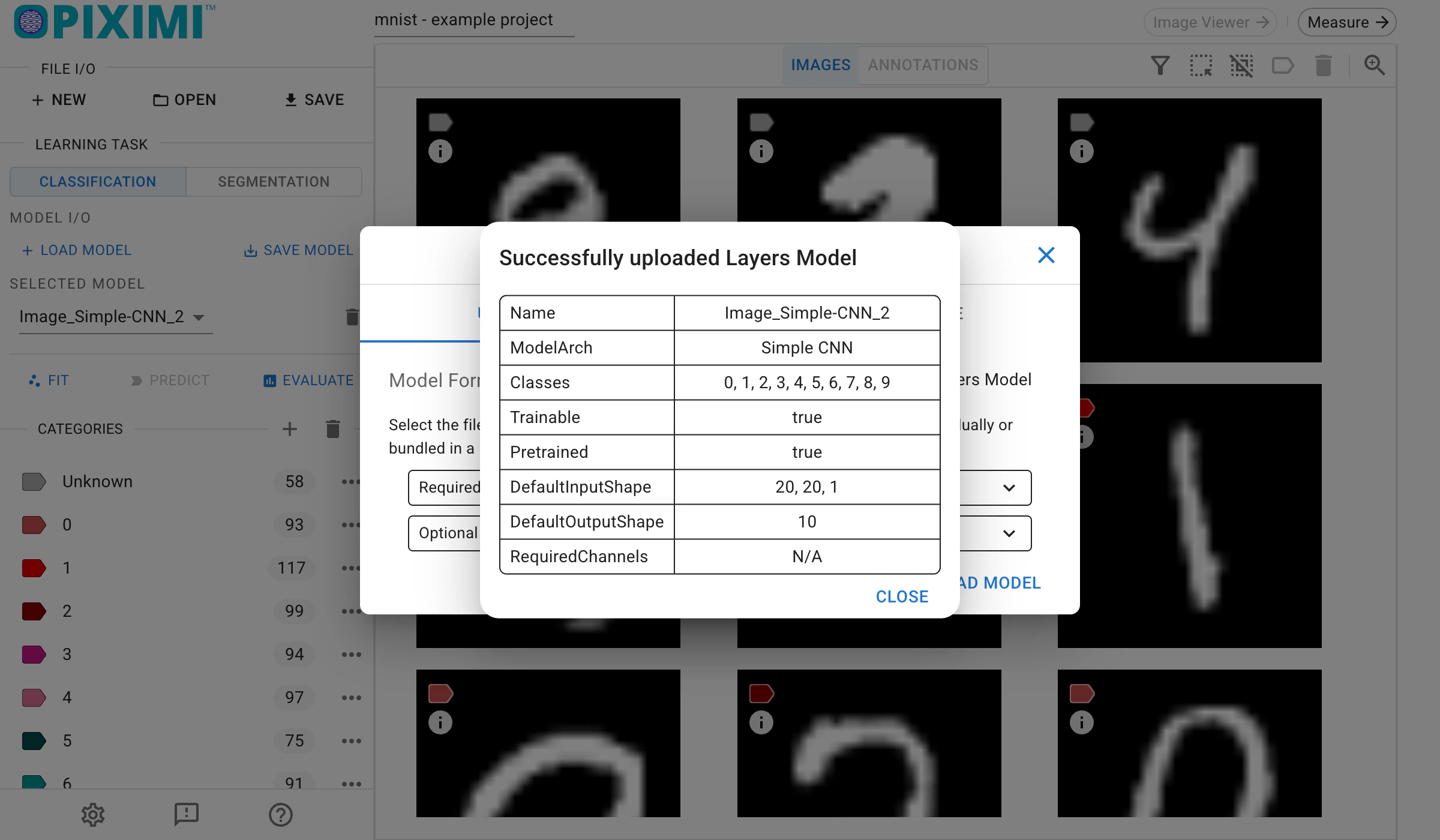
A model that has been uploaded successfully.
Can I run Piximi offline?#
Yes. Once you visit the application, there is no need for an internet connection so long as you do not close or refresh the tab. If you close or refresh the tab, you will need an internet connection to reload Piximi.
You can also serve the application locally using Docker. The instructions to do this are on the main Piximi repo README. After downloading the source code, no internet connection is necessary for serving locally and using the app.
No internet connection is necessary to save or load projects and classifier models. Segmentation models run in your browser, and your images are never transmitted over the internet. An internet connection is only needed to download a model the first time you load it (for example, Cellpose-SAM is downloaded from HuggingFace); it is cached by your browser afterwards.
Is there logging?#
No. Piximi does not log any information, perform any telemetry, or make any external API calls which granular user identify or behavior. Our only telemetry is on city- and referring-tool level access counts to the Piximi main and sub-pages.
What file formats are used?#
Piximi currently supports web-compatible formats such as BMP, PNG, JPG, as well as scientific file formats TIFF and DICOM. Webp support for mobile phone images is coming soon. There is no easy technical path to mass-support (ala bioformats) of proprietary microscope vendor file formats as this time, but if it becomes available, we would be excited to include it.
What classifier models are used?#
SimpleCNN, which uses 2 convolutional layers, 2 max pooling layers, and 1 dense layer. All layers are initialized with random weights and the entire model is trained.
MobileNetV1 (specifically, MobileNet_v1_0.25_224), which is a model pre-trained for image classification. Only the final convolutional layer’s parameters are modified during training, the rest of the parameters in the model are frozen.
What if internet connection is lost while a model is training?#
Once Piximi is loaded, no internet connection is necessary. You may keep working, save your project and model, and load previously saved projects and models. If you close the tab containing Piximi, or hit refresh on the browser, you will need an internet connection to reload Piximi.
No internet connection is necessary to save or load projects and models.
Is it possible to see a training summary?#
Yes. The model summary, accuracy and loss are displayed in the Fit Model window, in the Model Summary and Training Plots tabs, and will remain there even if you leave the window and re-enter.
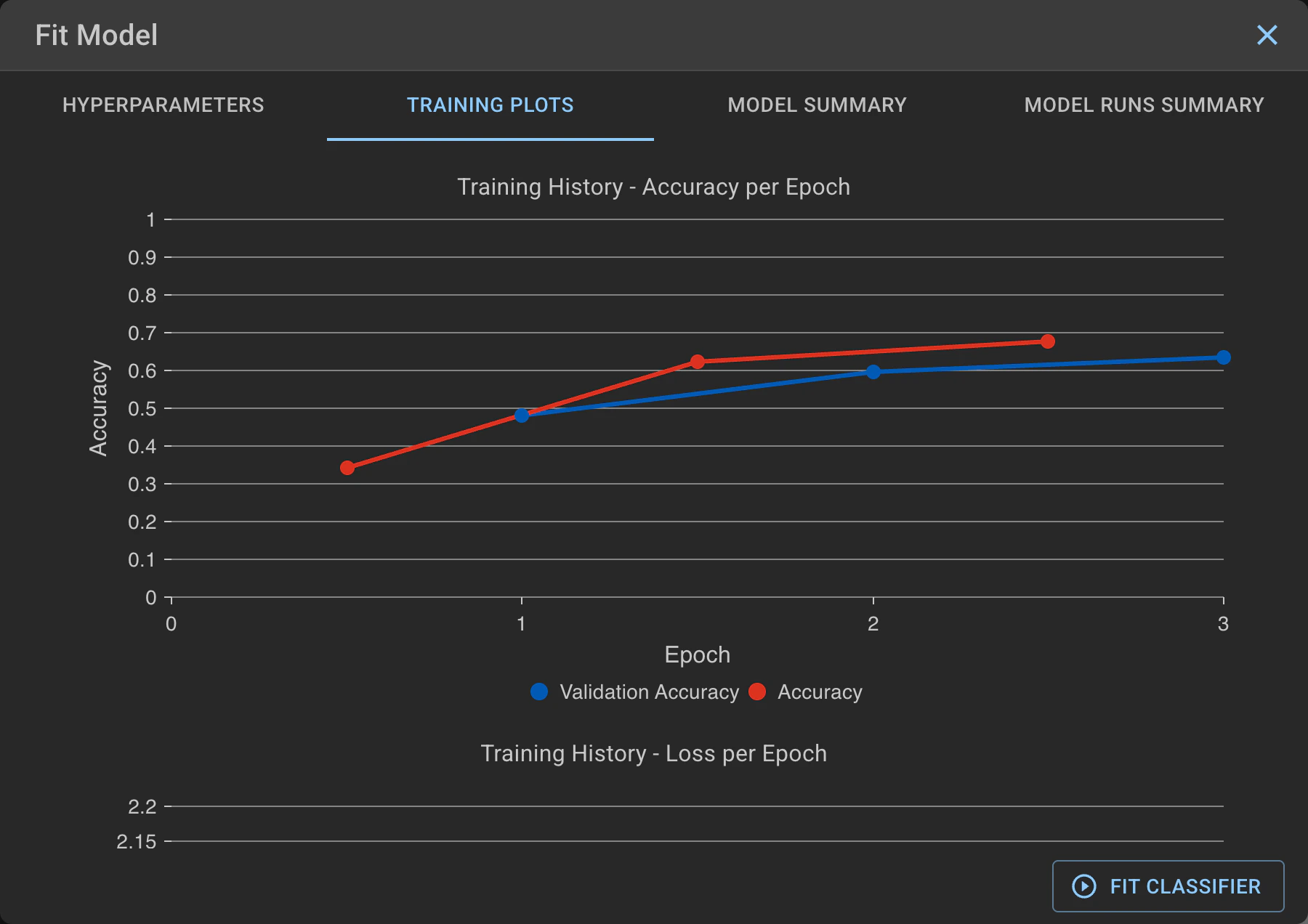
The Training Plots tab of the Fit Model window.
Additional metrics are available via Evaluate in the Classification section, which shows the evaluation of the model’s most recent training run.
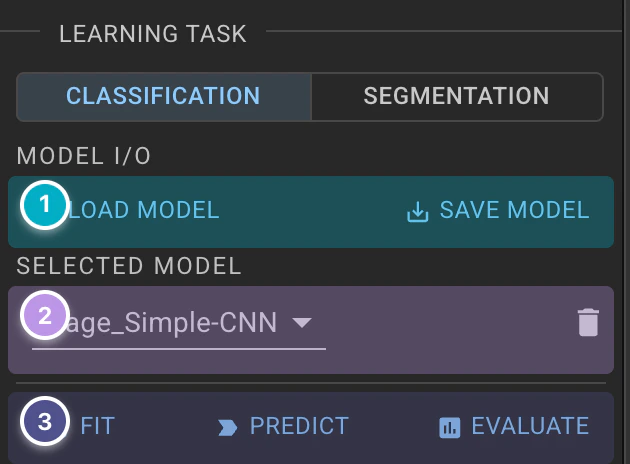
The Evaluate button is among the model operations of the Classification section.
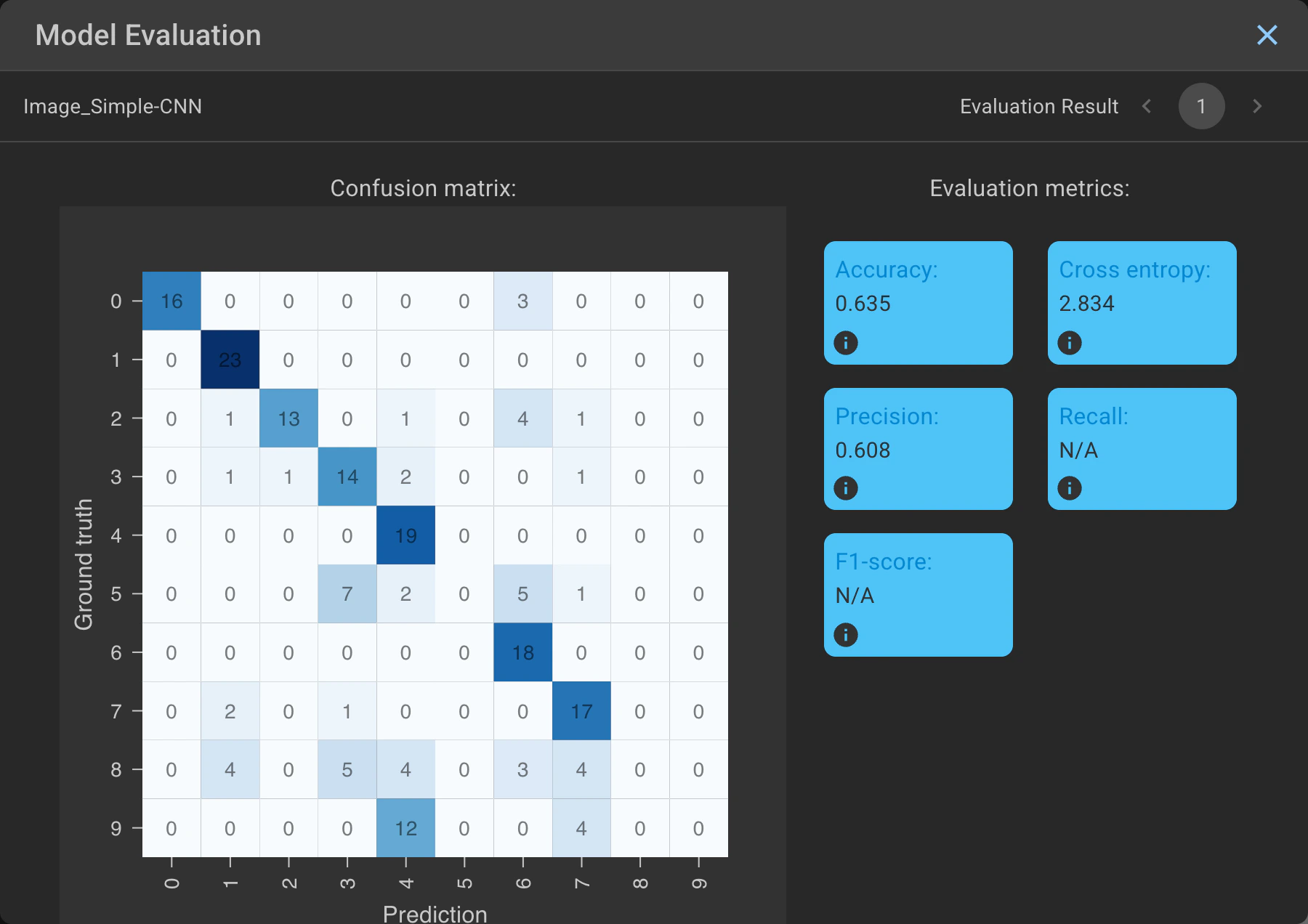
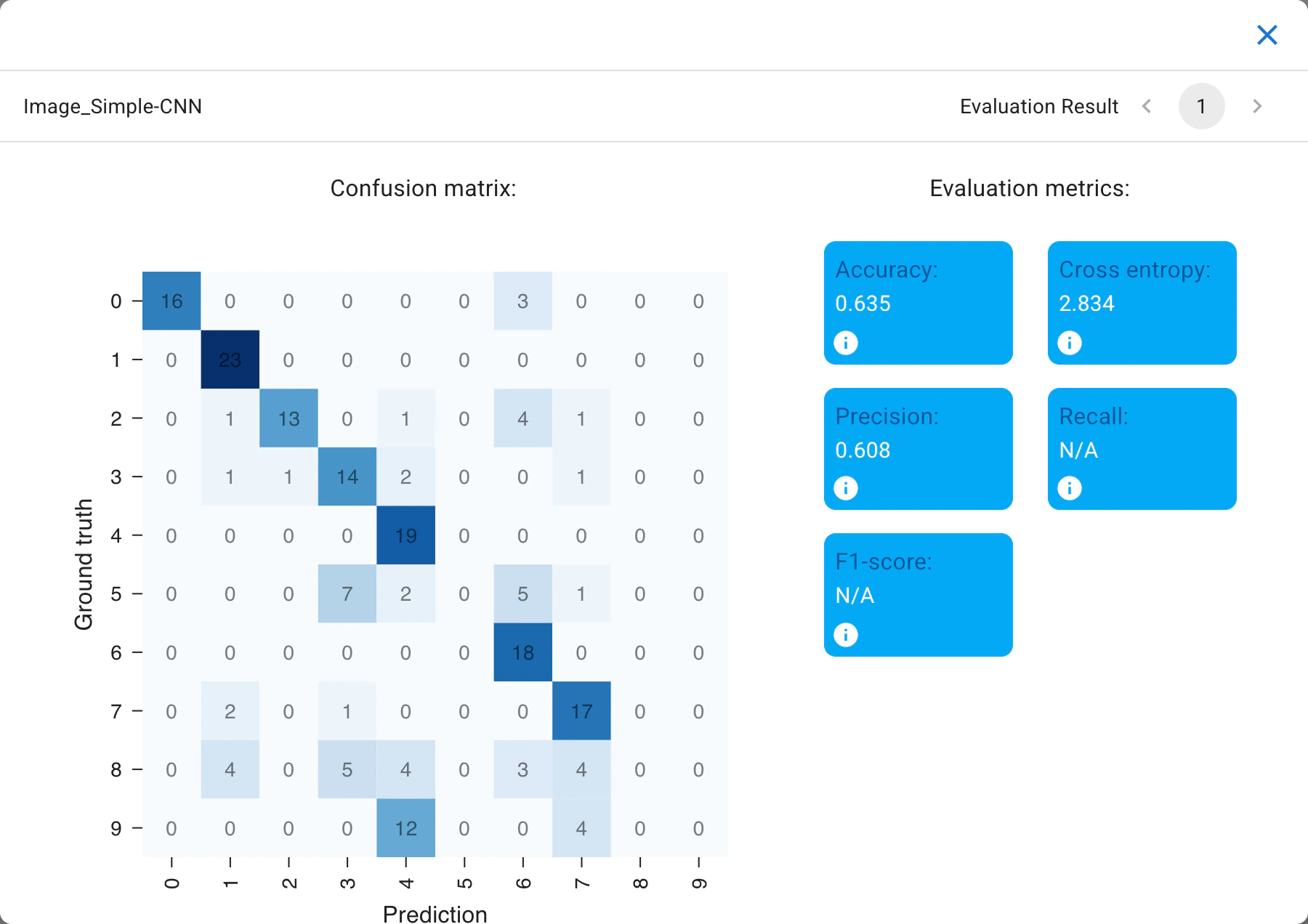
The Evaluate window.
If the current model is re-trained, or if a new model is trained, the summary and evaluation shown are those of the new training run. To avoid losing the results, save the current model before performing any additional training; the saved .zip includes the history of its training runs.
Does Piximi use a GPU?#
Yes. Piximi uses Tensorflow.js which in turn uses WebGL.
If using Chrome, users will need to enable GPU use by going into preferences -> advanced -> system, and enabling the “Use hardware acceleration when available” option.
Some segmentation models, such as Cellpose-SAM, additionally require a browser with WebGPU support.
If I run the same model multiple times, why do I get different training results?#
It is possible to get different training results when training on the same data. There are two major reasons for this: the first is a result of the random validation dataset that is selected by Piximi when you press 
Fit Classifier. For example, the first time you fit the classifier, images 1, 2 and 3 may be selected for the validation dataset. A second, and identical, run of fit classifier might then select images 4, 5 and 6 as your validation dataset, which look different to the images selected in the first run. Validation image selection is random so that the model performance can be evaluated independently of the images selected for validation. Even if your validation data set were identical, however, your results may still end up slightly different run-to-run due to certain steps in the training process that draw on random numbers and/or shuffle the data; we do not currently but may in the future provide ways to stabilize these parameters across runs.
Given these considerations, please do save your models frequently if you think they are performing well - you can always delete an old model later, but a generated model cannot be sure to be generated again if it hasn’t been saved!